Google Sheet
:tools: Step by Step Guide
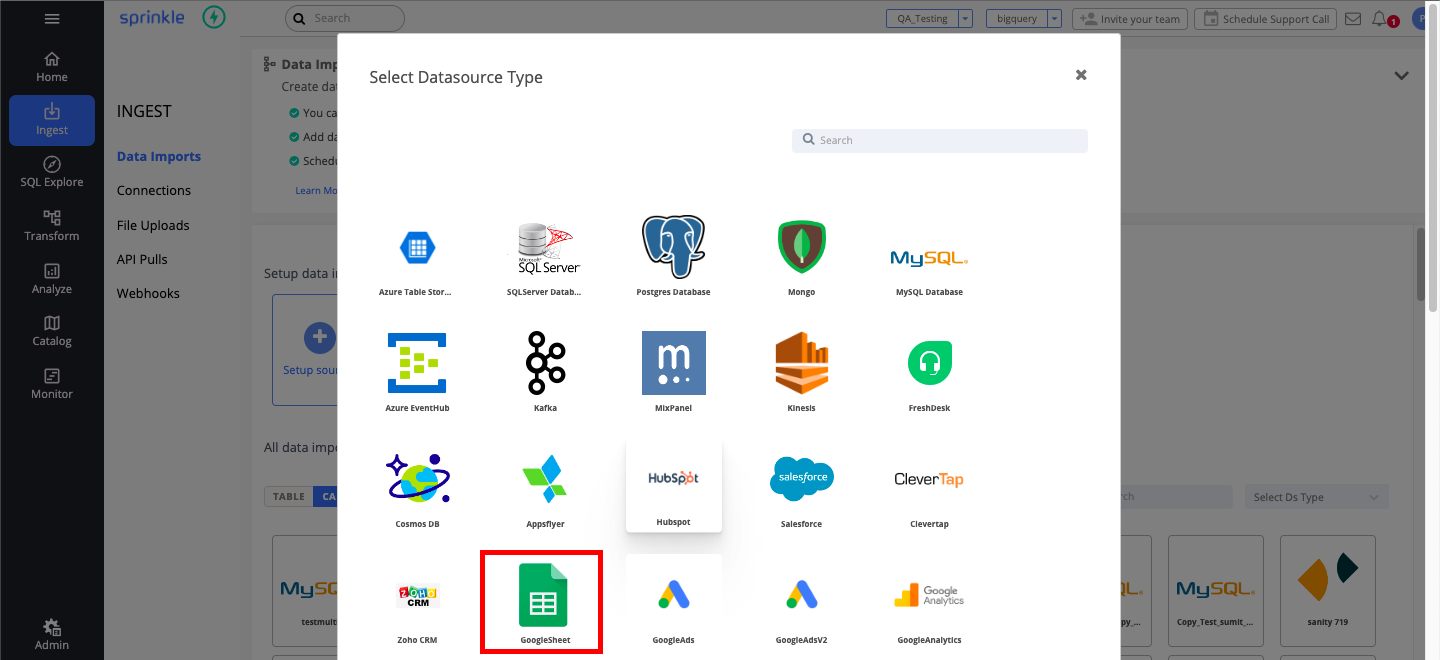
Section titled “ :tools: Step by Step Guide”On the navigation panel, Click on Ingest -> Pipeline -> Click the “+ Setup Sources” Icon
On clicking the “+“ Icon, a list of Pipeline pops up. In this case, Google Sheet is selected. A new Google Sheet Pipeline is named and created.
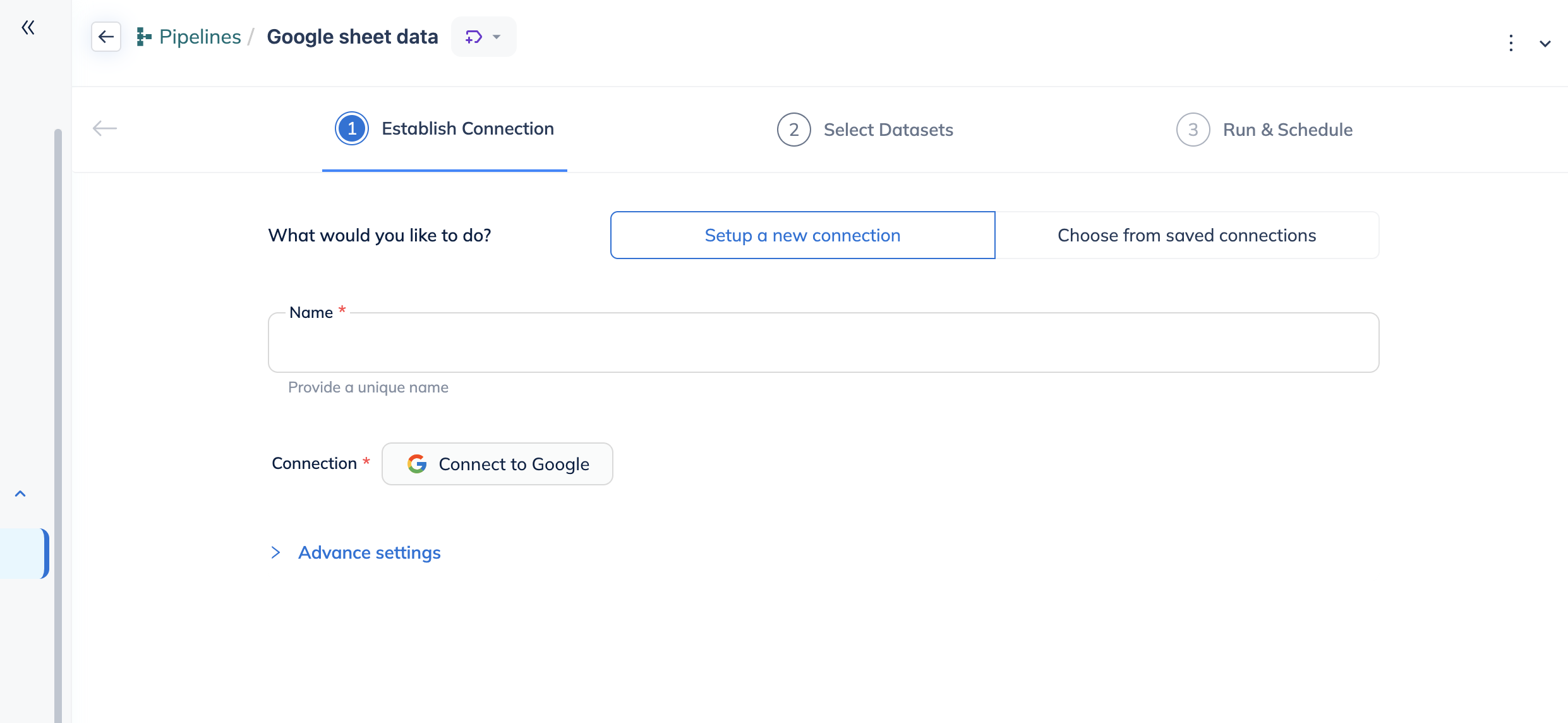
After naming the Pipeline, you can choose either an existing connection or create a new connection.
To create a connection, click on the “Connect to GOOGLE” button which pops up a Google login page.
You can select Advance settings as well for the connection (Refer here)
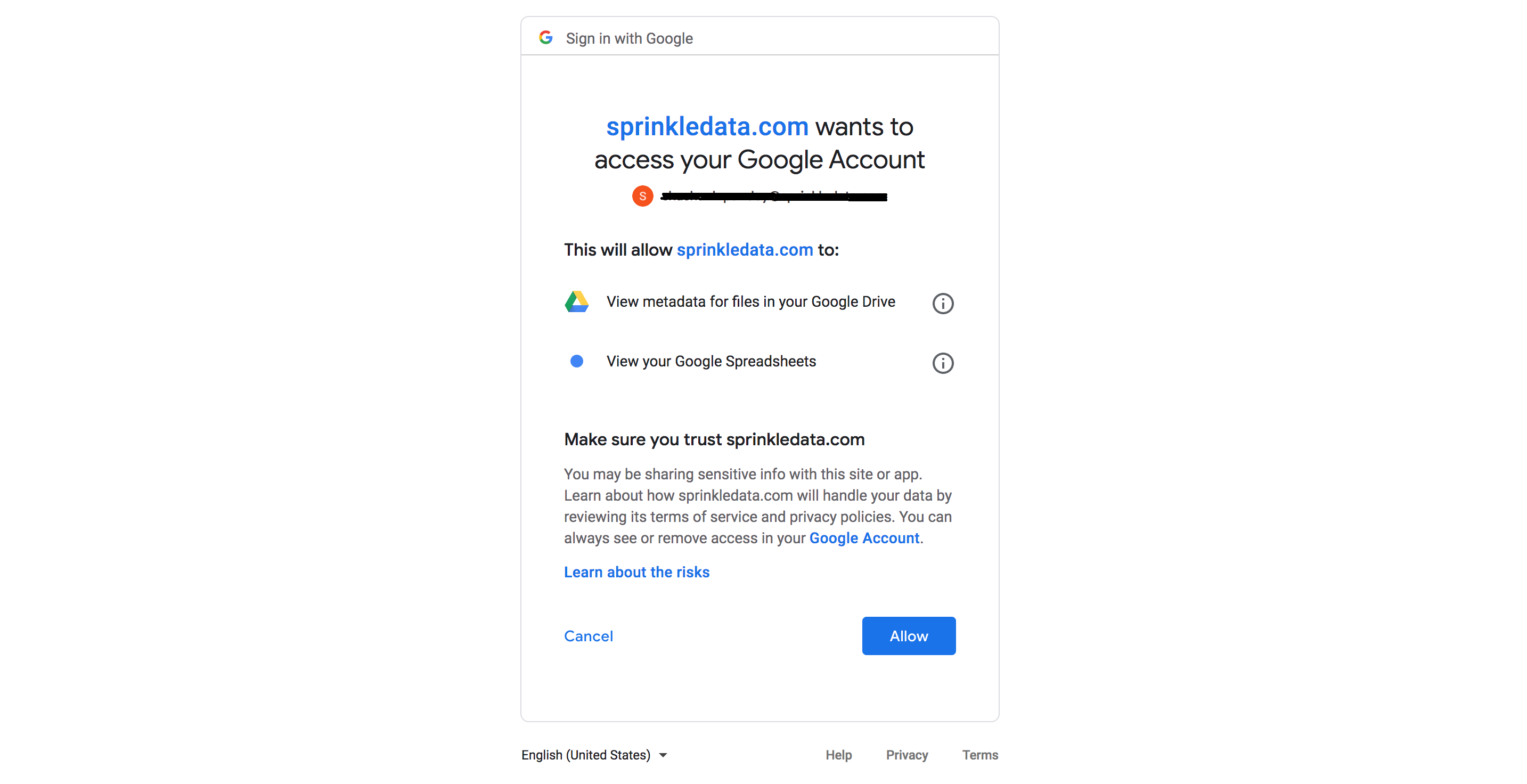
Post login, you will be prompted to allow permissions required for sprinkle to read data further. Once you provide consent by clicking on ‘Allow’, the connection can be created from Sprinkle.
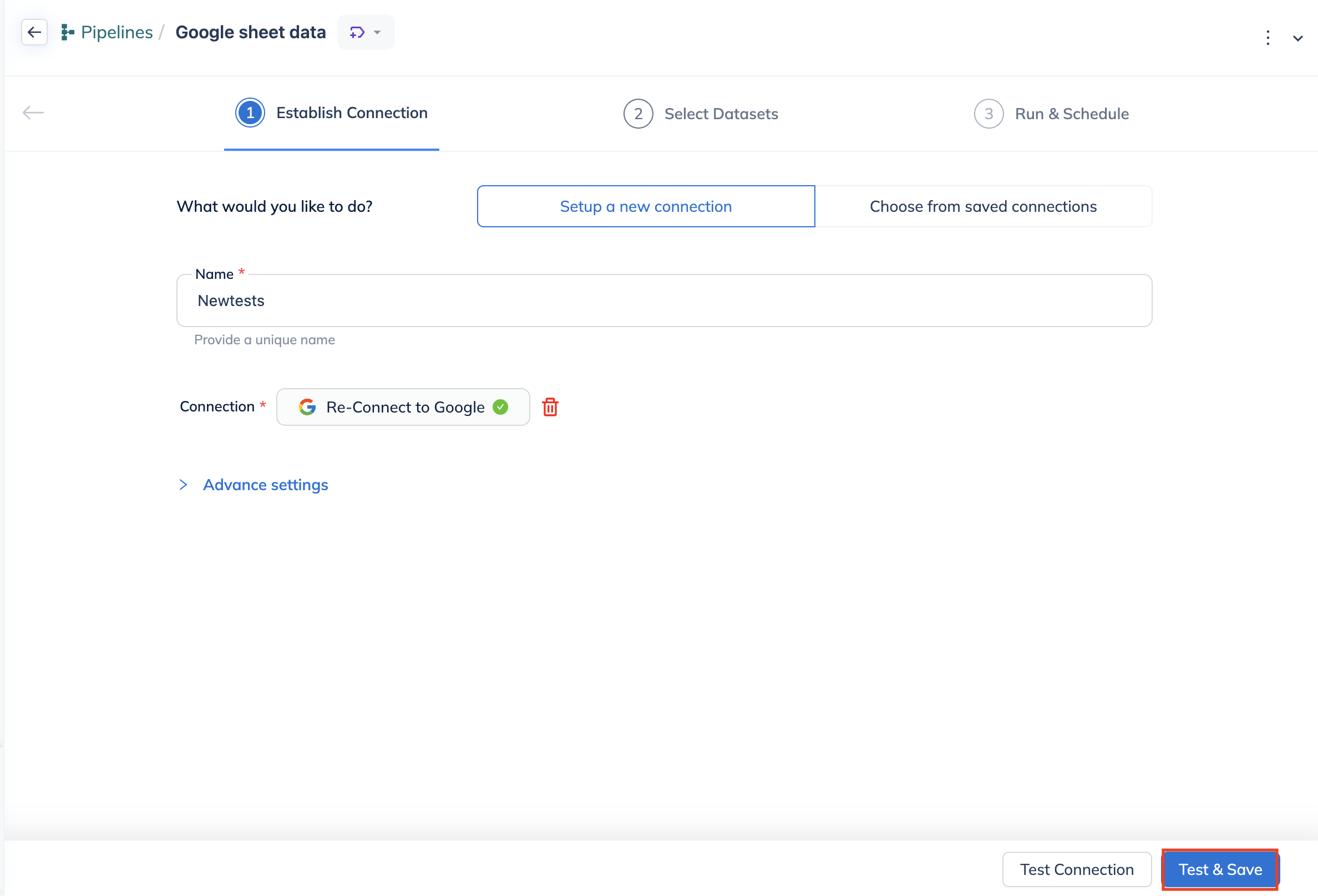
Once the connection is established, you can select datasets.
In the Datasets tab, the user needs to select the Spreadsheet ID and then the tab from the particular sheet he intends to ingest. Please note that users can ingest only one tab at a time. On selecting the tab, a default table name is created. However, users can rename the table as per their requirements.
User can select following skip rows and columns -
- Skip before header - Specify the number of rows to skip before header line. Should not skip column header itself.
- Exclude columns - List of columns to be excluded when reading the CSV.
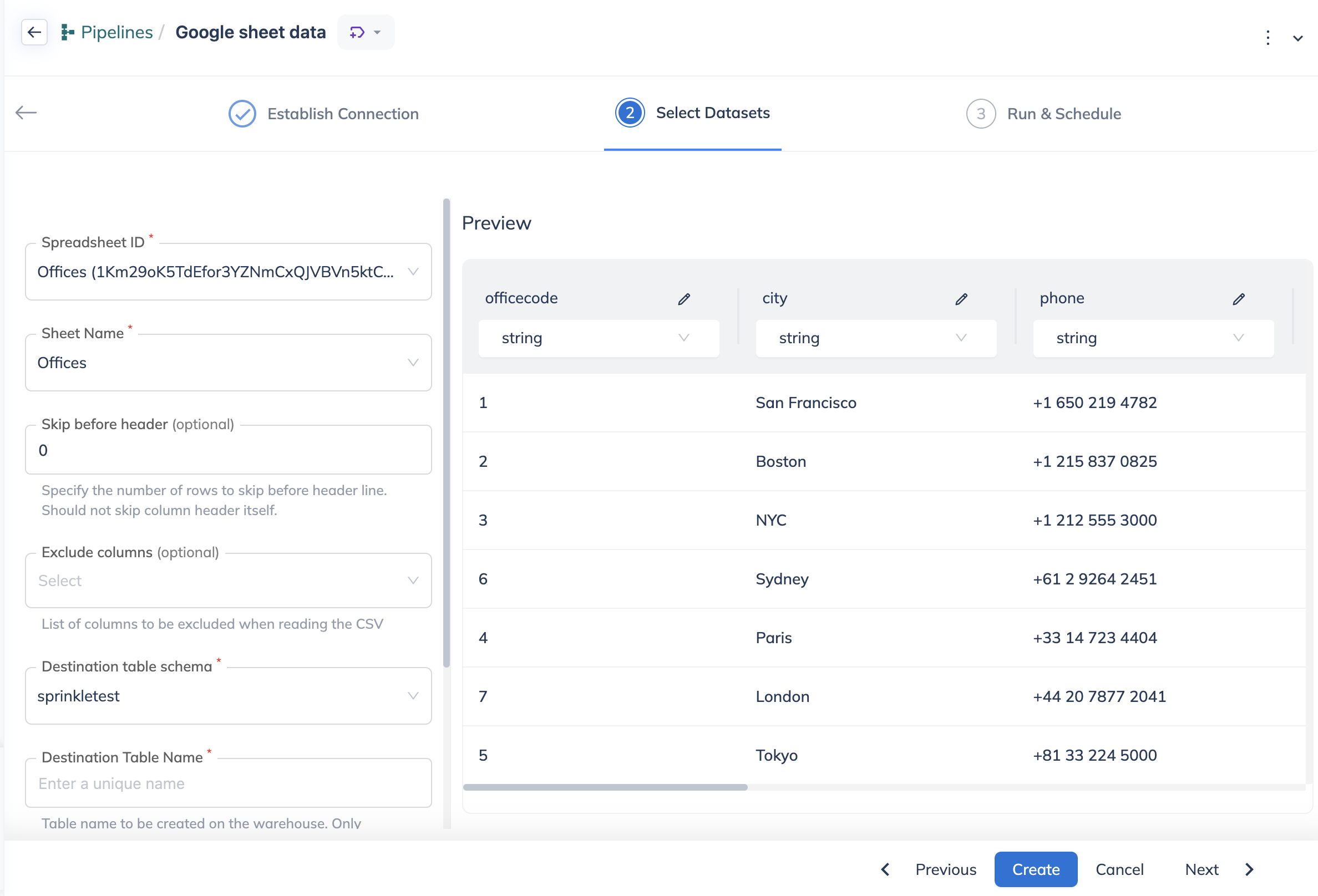
- Destination Create Table Clause: Provide additional clauses to warehouse-create table queries such as clustering, partitioning, and more, useful for optimizing DML statements. Learn more on how to use this field.
- Preview: Shows the preview of the table. You can change the headers and also change the variable type of the data in the columns.
Next, the user can click on “Create”.
Now the dataset is added. You can edit the dataset or add more datasets. Once done, click on Run and Schedule.
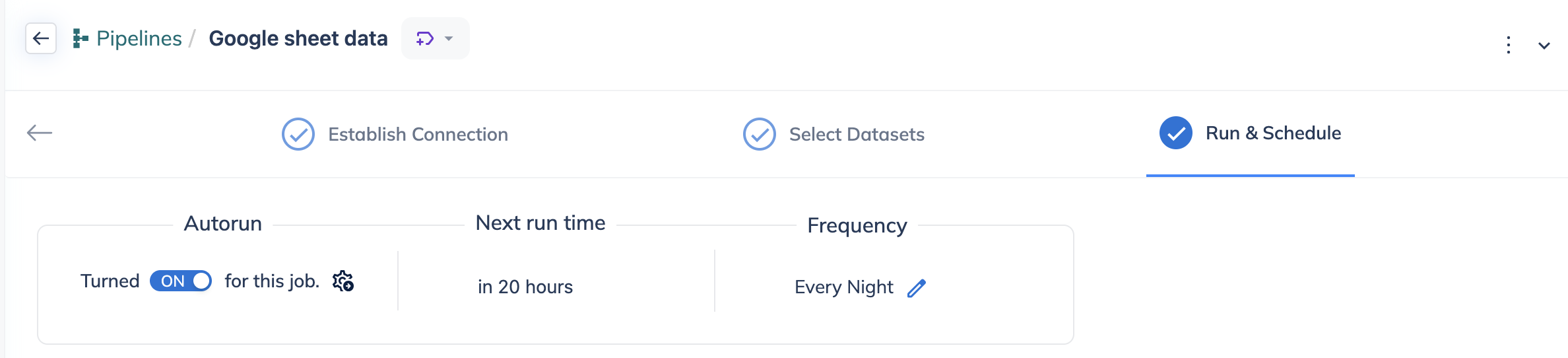
In the Run & Schedule tab, the status of the job will be updated in the tab below once it’s complete.
The jobs can also be set to run automatically by enabling autorun. By default, the frequency is set to every night. Frequency can be changed by clicking on More –> Autorun–>Change Frequency.
Advanced Connection Settings
Section titled “Advanced Connection Settings”- API Read Timeout (In seconds) : Maximum time of inactivity between two data packets when waiting for the server’s response. The default value is 30 seconds
- API Connection Timeout (In seconds) : Time period within which a connection between a client and a server must be established.
- Retry Limit : Number of retries allowed when an API call fails. For example if an API call fails and retry limit is 5 then it will check 5 times for that API call and if it succeeded then it will stop checking.
- Retry Sleep Time (In milliseconds) : Given time, after which retry should happen in case an API call fails.
- Version : it gives information about the version of Google Sheet API being used.